
Chat Mode
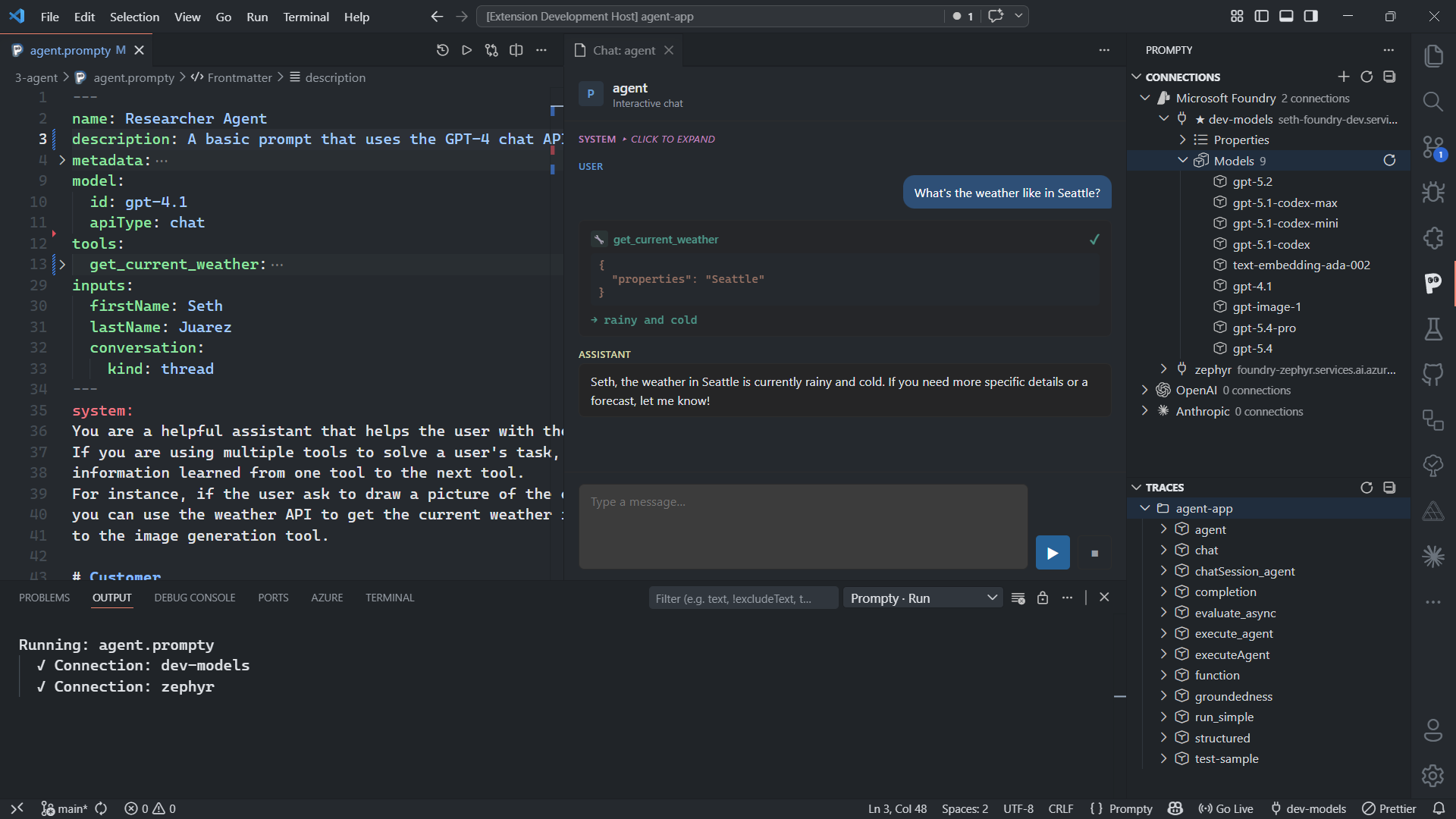
Overview
Section titled “Overview”When a .prompty file declares an input with kind: thread, pressing F5
opens an interactive chat webview instead of running a single execution.
This gives you a full multi-turn conversation interface directly inside VS Code.
inputSchema: properties: - name: question kind: string default: Hello - name: conversation kind: threadThe thread input tells the extension that this prompt is designed for
conversation — the extension will manage the conversation history and pass it
back into the prompt on every turn.
Chat Interface
Section titled “Chat Interface”The chat webview provides a dedicated set of UI elements for interactive conversations:
-
Message list — displays the full conversation history with role-colored bubbles. System, user, and assistant messages are visually distinct so you can scan the conversation structure at a glance.
-
Text input — type your message at the bottom of the panel and click Send or press Enter to submit.
-
Loading indicator — a visual spinner appears while the extension waits for the LLM to respond, so you know the request is in progress.
-
Tool call cards — when the model invokes tools, each call is shown as an expandable card displaying the function name, arguments, and the inline return value. You can expand or collapse individual cards to inspect details.
-
End chat button — stops the current session and saves the complete multi-turn trace as a
.tracyfile. Click this when you’re done with the conversation.
How It Works
Section titled “How It Works”Each user turn re-runs the full prompt pipeline with the accumulated
conversation history passed into the thread input. Here’s the step-by-step
flow:
- User types a message in the text input and presses Enter
- Extension builds the full conversation history — all previous user and assistant messages, including any tool call results
- Passes the history as the thread input alongside the user’s current message
- Runs the full pipeline — render → parse → execute → process — just like a single-shot execution, but with the conversation context included
- Appends the response to the conversation in the message list
- If the model returns tool calls, each call is displayed as an expandable card and the tool function is executed automatically
- Re-sends with tool results if needed — the extension loops until the model returns a final text response
This means every turn sees the entire conversation, giving the model full context for coherent multi-turn dialogue.
Tool Calling in Chat
Section titled “Tool Calling in Chat”When your .prompty file defines tools in the frontmatter, the chat panel
handles tool calls automatically during the conversation. If the model decides
to invoke a tool:
- The tool call appears as an expandable card in the message list
- The card shows the function name and arguments the model provided
- The extension executes the tool and displays the return value inline
- The result is appended to the conversation and sent back to the model
- The model can then respond with a final answer or make additional tool calls
This loop continues until the model produces a standard text response. You can expand any tool call card to inspect the arguments and result at any time during or after the conversation.
Saving Traces
Section titled “Saving Traces”The final .tracy file captures the entire multi-turn session — every user
message, assistant response, tool call, and tool result across all turns. Click
End Chat to stop the session and save the trace.
The trace is written to the .runs/ directory in your workspace, just like
single-shot execution traces. Open it to inspect timing, token usage, and the
full conversation flow.