
Connections
Overview
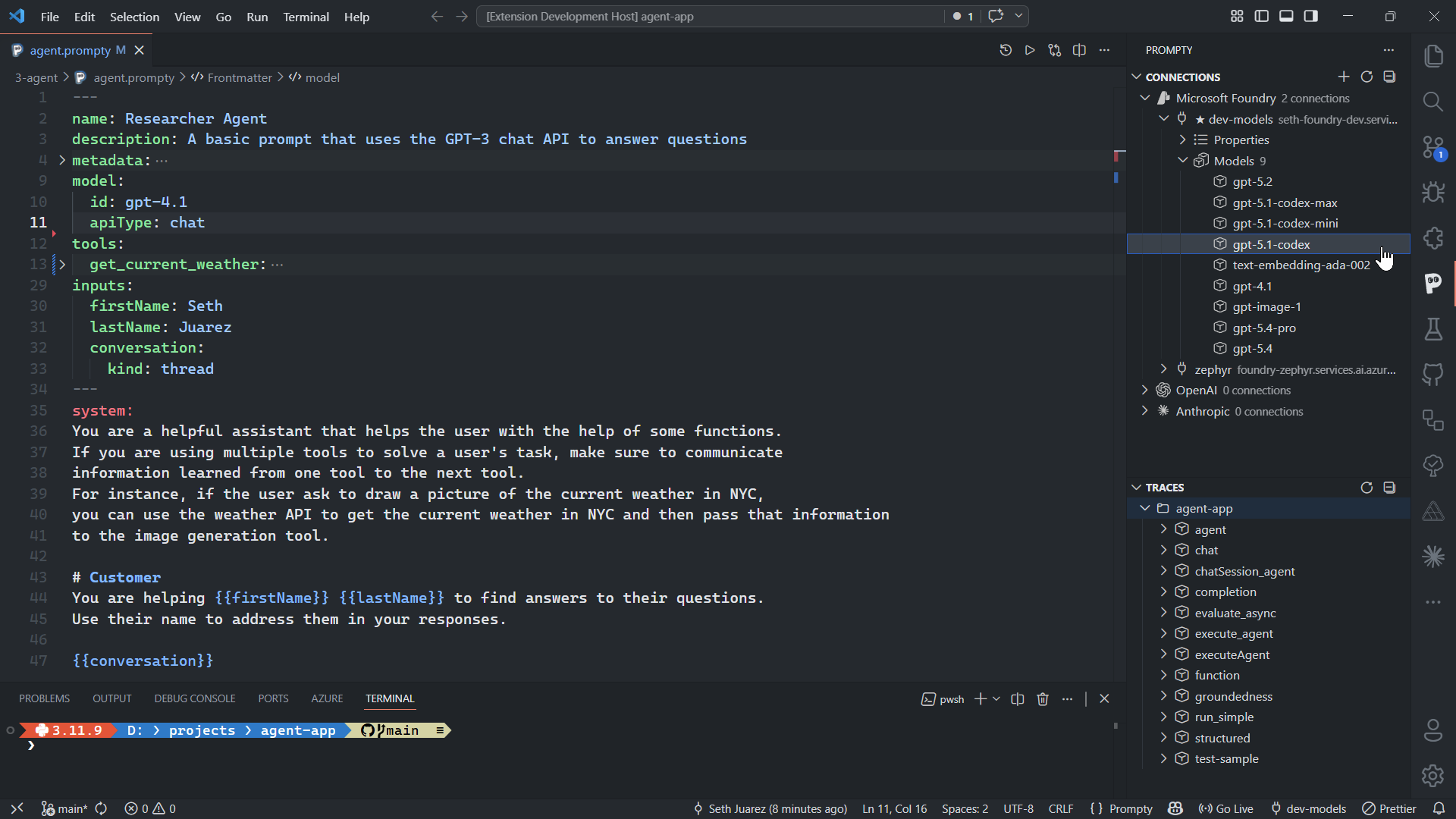
Section titled “Overview”Connections define how the Prompty extension reaches an LLM provider. Each
connection stores an endpoint, authentication credentials, and provider-specific
settings so you can run .prompty files directly from VS Code without managing
environment variables by hand.
The extension ships with built-in support for three providers:
| Provider | Auth Method | Model Discovery |
|---|---|---|
| OpenAI | API key | ✅ Lists available models via the OpenAI API |
| Anthropic | API key | ✅ Lists available models via the Anthropic API |
| Microsoft Foundry | Azure AD / API key | ✅ Lists deployed models from your Foundry project |
You can configure multiple connections per provider and mark one as the
default — the extension uses that default whenever a .prompty file doesn’t
specify a connection explicitly.
How Connections are Stored
Section titled “How Connections are Stored”Connection profiles are saved to a .prompty/connections.json file in your
workspace root. Secrets (API keys, tokens) are stored separately in VS Code’s
SecretStorage — they never appear in the JSON file on disk.
A typical connections.json looks like this:
{ "openai-dev": { "provider": "openai", "endpoint": "https://api.openai.com/v1", "isDefault": true }, "azure-prod": { "provider": "foundry", "endpoint": "https://my-resource.services.ai.azure.com/api/projects/my-project", "isDefault": false }}Each key is the connection name you chose during setup. The isDefault flag
controls which connection is used when multiple connections exist for the same
provider.
Adding a Connection
Section titled “Adding a Connection”Open the Connections panel in the sidebar and click the + button (or run the Prompty: Add Connection command from the Command Palette). The extension walks you through a four-step wizard:
- Pick a provider — OpenAI, Anthropic, or Microsoft Foundry
- Enter a name — a short label for this connection (e.g.
openai-dev) - Provide credentials — endpoint URL and API key (or Azure AD for Foundry)
- Test (optional) — the wizard offers to test the connection before saving
After the wizard completes, the connection appears in the sidebar and is ready to use.
OpenAI
Section titled “OpenAI”| Step | Field | Required | Default |
|---|---|---|---|
| 1 | Connection name | ✅ | — |
| 2 | API key | ✅ | — |
| 3 | Endpoint | ❌ | https://api.openai.com/v1 |
| 4 | Model | ❌ | gpt-4o |
Connection name: my-openaiAPI key: sk-...Endpoint: (leave default)Model: gpt-4o-miniAnthropic
Section titled “Anthropic”| Step | Field | Required | Default |
|---|---|---|---|
| 1 | Connection name | ✅ | — |
| 2 | API key | ✅ | — |
| 3 | Endpoint | ❌ | https://api.anthropic.com |
| 4 | Model | ❌ | claude-sonnet-4-6 |
Connection name: my-anthropicAPI key: sk-ant-...Endpoint: (leave default)Model: claude-sonnet-4-6Microsoft Foundry
Section titled “Microsoft Foundry”Microsoft Foundry connections use Azure AD authentication instead of API
keys. The extension obtains a bearer token via DefaultAzureCredential, so you
must be logged in to Azure (e.g., via the Azure CLI or the VS Code Azure Account
extension).
| Step | Field | Required | Default |
|---|---|---|---|
| 1 | Connection name | ✅ | — |
| 2 | Project endpoint | ✅ | — |
| 3 | Foundry connection name | ❌ | — |
| 4 | Tenant ID | ❌ | — |
Connection name: my-foundryProject endpoint: https://my-project.services.ai.azure.comFoundry connection name: (leave blank for default)Tenant ID: (leave blank for default)Testing a Connection
Section titled “Testing a Connection”Right-click any connection in the sidebar and select Test Connection, or click the plug icon that appears inline. You can also run Prompty: Test Connection from the Command Palette. The extension runs a lightweight check for each provider:
| Provider | What the test does | On success |
|---|---|---|
| OpenAI | Calls models.list() | Reports latency |
| Anthropic | Sends a minimal messages request | Reports HTTP 200 |
| Foundry | Authenticates with Azure AD, calls deployments endpoint | Reports deployment count and credential source |
After the test, the connection’s status icon updates in the sidebar:
- ✅ Connected — all checks passed
- ❌ Failed — one or more checks failed (hover for details)
Editing a Connection
Section titled “Editing a Connection”To update an existing connection, right-click it in the Connections panel and select Edit Connection (or run Prompty: Edit Connection from the Command Palette).
The wizard reopens with your current settings pre-filled. You can change any field — name, endpoint, or credentials. When you save:
- The profile in
.prompty/connections.jsonis updated - If you changed the secret (API key), the old SecretStorage entry is replaced
- The
isDefaultflag is preserved unless you explicitly change it
Deleting a Connection
Section titled “Deleting a Connection”Right-click a connection in the sidebar and select Delete Connection, or run Prompty: Delete Connection from the Command Palette.
Deleting a connection removes both:
- The profile entry from
.prompty/connections.json - The associated secret from VS Code’s SecretStorage
Setting a Default
Section titled “Setting a Default”When you have multiple connections for the same provider, you can mark one as the default. Right-click a connection and select Set as Default, or click the star icon. The default connection is set per provider type — you can have one default OpenAI connection and one default Foundry connection simultaneously.
The extension resolves which connection to use in this order:
| Priority | Source | Example |
|---|---|---|
| 1 | Frontmatter model.connection | Explicit endpoint + key in the .prompty file |
| 2 | Provider default | The default connection for the provider named in model.provider |
| 3 | Any default | Falls back to any connection marked as default |
The status bar at the bottom of the VS Code window shows your current default connection — click it to quickly switch defaults.
Model Discovery
Section titled “Model Discovery”Expand any connection in the Connections panel to reveal a Models section. The extension queries the provider’s API and lists all models available under that connection.
- OpenAI — lists all models your API key has access to
- Anthropic — lists available Claude model variants
- Microsoft Foundry — lists models deployed in your Foundry project
Model IDs from this list are what you use in the model.id field of your
.prompty frontmatter:
model: id: gpt-4o # ← model ID from the discovery list provider: openaiClick the refresh icon next to the Models heading to re-fetch the model list
(for example, after deploying a new model to your Foundry project). The language
server also uses discovered models to offer completions when you type model.id
in a .prompty file.
Refreshing Connections
Section titled “Refreshing Connections”Click the refresh button in the Connections panel toolbar to reload all connections from disk and re-authenticate with each provider.
This is useful when:
- You edited
.prompty/connections.jsonoutside of VS Code - An API key or Azure AD token has expired and needs re-acquisition
- You switched Azure accounts and want to pick up the new credentials
- Another workspace tool modified the connections file
The refresh re-reads connections.json, re-validates secrets in SecretStorage,
and updates the sidebar tree. Any connection whose credentials are no longer
valid will show a failed status icon.