
Running & Preview
Running a Prompt
Section titled “Running a Prompt”Press F5 with a .prompty file open — or click the ▶ play button in the
editor title bar. Here’s what happens under the hood:
sequenceDiagram
    participant Editor
    participant Runtime
    participant Provider
    participant Trace

    Editor->>Runtime: Load .prompty + .env
    Runtime->>Runtime: Bridge connections
    Runtime->>Runtime: Render template with sample inputs
    Runtime->>Runtime: Parse role markers → messages
    Runtime->>Provider: Send to LLM
    Provider-->>Runtime: Response
    Runtime->>Trace: Write .tracy to .runs/
    Trace-->>Editor: Open trace viewer
Step by step:
- Loads
.envfiles automatically, searching from the file’s directory up to the workspace root - Bridges sidebar connections into the built-in TypeScript runtime — injecting API keys, endpoints, and credentials as needed
- Renders the template using
defaultandexamplevalues frominputSchema - Parses role markers (
system:,user:,assistant:) into a message list - Sends the messages to the LLM via the configured connection
- Writes a
.tracytrace file to the.runs/folder in your workspace - Opens the trace viewer so you can inspect the result
Live Preview
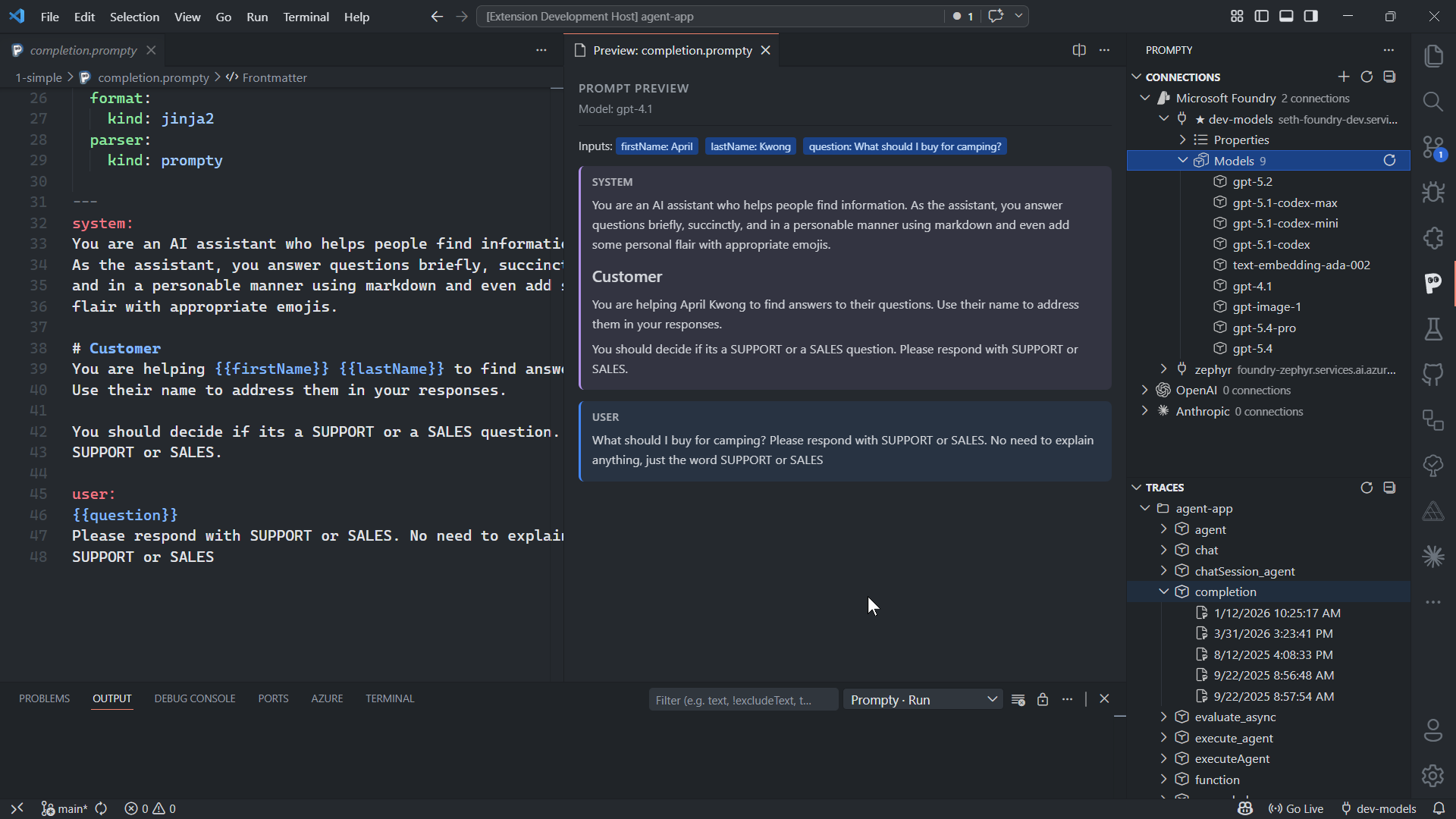
Section titled “Live Preview”Click the preview icon (split-pane icon) in the editor title bar — or run
Prompty: Preview from the Command Palette (Ctrl+Shift+P) — to open a live
preview panel beside your editor.
The preview panel shows:
- Model info — which model and provider the prompt targets
- Input summary — tags showing the sample values that will be used
- Rendered messages — the fully rendered conversation with role-colored blocks and Markdown formatting
The preview updates live as you type. It runs load() + prepare() only —
no LLM call is made, so it’s free and instant.
Inputs with kind: thread are skipped in preview mode. If rendering fails
(e.g., a Jinja2 syntax error), the preview falls back to showing the raw
instructions.
Environment Variables
Section titled “Environment Variables”The extension loads .env files automatically when running or previewing
prompts. You can use ${env:VAR_NAME} references in your frontmatter, and
they’ll be resolved at load time. The search starts from the .prompty file’s
directory and walks up to the workspace root.
OPENAI_API_KEY=sk-your-key-hereANTHROPIC_API_KEY=sk-ant-your-key-hereAZURE_AI_PROJECT_ENDPOINT=https://my-project.services.ai.azure.comYou can also set a custom .env file path via the prompty.envFilePath
setting if your env file isn’t in the default search path:
{ "prompty.envFilePath": ".env.local"}Error Handling
Section titled “Error Handling”The extension surfaces helpful error hints when a prompt execution fails. Common HTTP errors and what to check:
| Status | Meaning | What to Do |
|---|---|---|
| 401 | Authentication failed | Check that your API key is correct and hasn’t expired. Re-enter it with Edit Connection. |
| 403 | Forbidden | Verify your account has the required permissions for the model or deployment. |
| 404 | Model / deployment not found | Check the model.id in your frontmatter — the model name or deployment ID may be misspelled or not available in your region. |
| 429 | Rate limited | You’ve hit the provider’s rate limit. Wait a moment and retry, or switch to a different model/deployment. |